
Guidance for Expert Review Panel and Decision Panel members using our grants portal. Learn how to review applications and record your scores and feedback.
How to complete a grant application review
Complete a review
To complete a review in MS Trust's grants portal, you'll need to log in to the grants portal, open the application(s) assigned to you, complete the review form and save your responses.
Important: If this is your first time using the portal, click Forgot your Password? on the login page. You will receive an email with instructions to create a password.
- Log in to the grants portal.
- On your dashboard, find the application(s) assigned to you.
- Click Start next to the application you want to review.
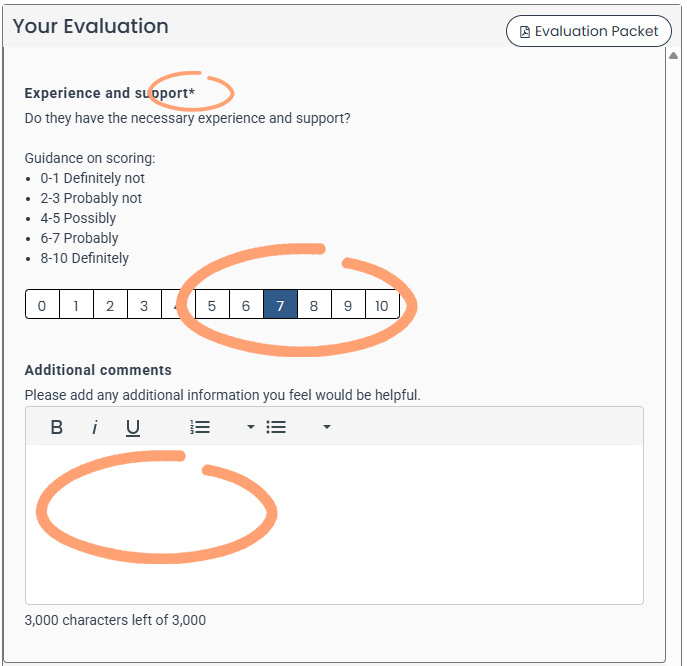
- The review questions are displayed in the Your Evaluation section.
- Complete the review form:
- Questions marked with an asterisk (*) must be completed.
- Scores range from 0 to 10. Scoring guidance is shown within the review form.
-
Comments are encouraged and help support the decision-making process.
-
When you have finished, click Save.
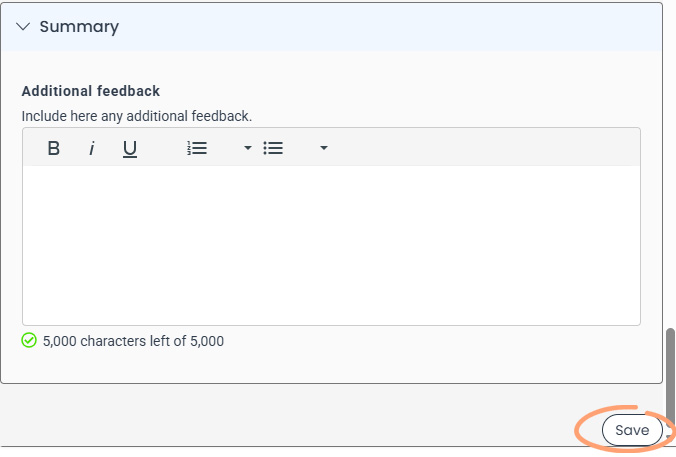
- The confirmation page will confirm your review has been saved.
From the confirmation page you can:
- Click Return to Evaluation to reopen the review you have just completed.
- Click Next Pending Evaluation to start reviewing another assigned application.
- Click Return to Dashboard to return to your dashboard.
Successfully completed reviews are marked with a tick in a green circle on your dashboard.
Before you submit
- Read the application carefully before scoring.
- Make sure all required questions have been completed.
- Check that your scores reflect the guidance provided in the review form.
- Save your review before leaving the page.
System tips
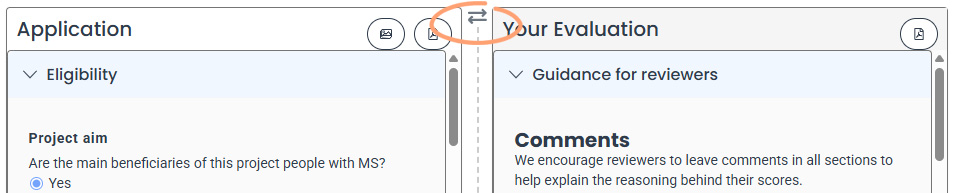
- Use the arrow icon to change the order of the application form and the evaluation form on your screen.
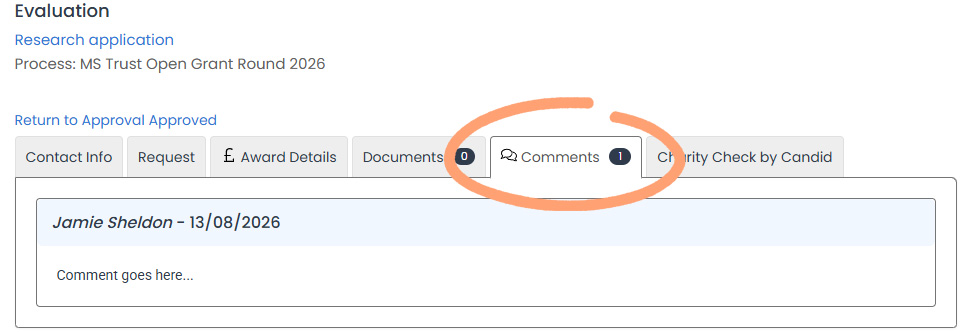
- Click the Comments tab to view any comments from system administrators.
- If you prefer to work offline:
- Click Application Packet to download a PDF copy of the application.
- Click Evaluation Packet to download a PDF copy of the review form.


- Click Document Viewer to view any supporting documents submitted with the application.

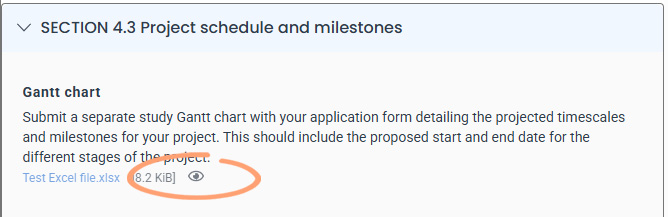
- Click the eye icon to view an individual document uploaded by the applicant.
- You can continue to update your review until the review period closes.
- To make changes to a completed review, click Update from your dashboard.
- To continue a review that you started but did not finish, click Continue from your dashboard.